Label Printer Tools
Needs Windows and a Zebra ZT410 printer. Version 1.0.0, free and open source (MIT).
A Zebra ZT410 is built for shipping labels in warehouses, and I wanted it to print my photos and art. Going through Adobe Lightroom was clumsy, so I built a Windows app that sends images straight to the printer in its own language, ZPL.
It's also what makes my Frame-by-Frame Label Video Project possible. Version 1.0.0 is a free Windows download, and the code is open source under the MIT license.
From Pixels to Dots
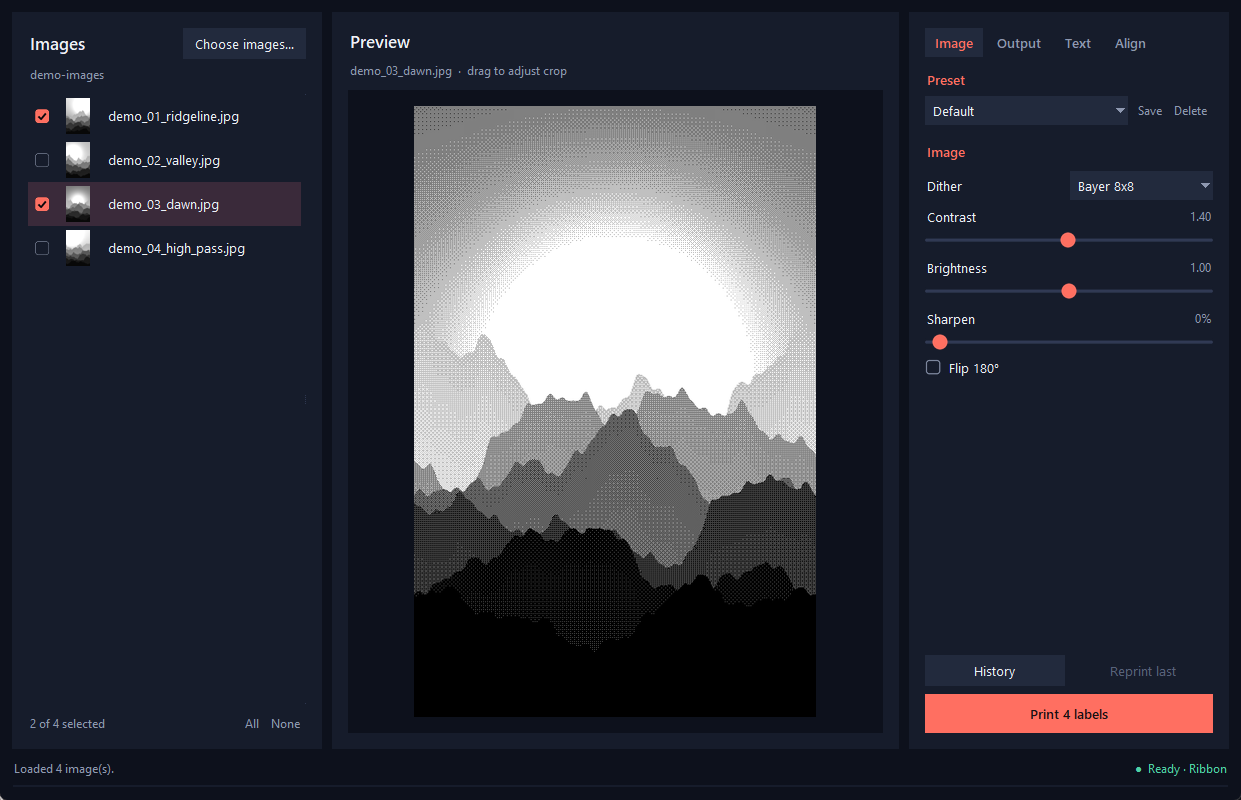
The printer can only make a dot or leave it blank, so every image has to become pure black and white. The app fills the 4×6 label with the picture, turning landscape photos sideways so they use the whole label, and I can drag the preview to choose which part gets cropped. Then it adjusts contrast, brightness (a gamma curve) and sharpening, and dithers the result into a 1-bit pattern at 203 dots per inch. Shades of gray come from how the dots are arranged.
There are five ways to place the dots: Bayer 8×8 and Bayer 4×4 (an ordered halftone grid), Floyd-Steinberg and Atkinson (which spread each dot's rounding error to its neighbors), and plain threshold. The finished bitmap goes to the printer as a ZPL graphic, and a live preview shows exactly what will print first.
Try the Dither
Learning From Real Hardware
Most of the work came from using real hardware. I calibrated the image to the physical label with a printed test pattern: a border, tick marks every 1 mm numbered every 5 mm, and the current settings printed in the middle. From that I set a vertical offset and a height adjustment in dots (8 dots is 1 mm), and every job is capped at the printer's 832-dot print width so nothing lands on the platen roller.
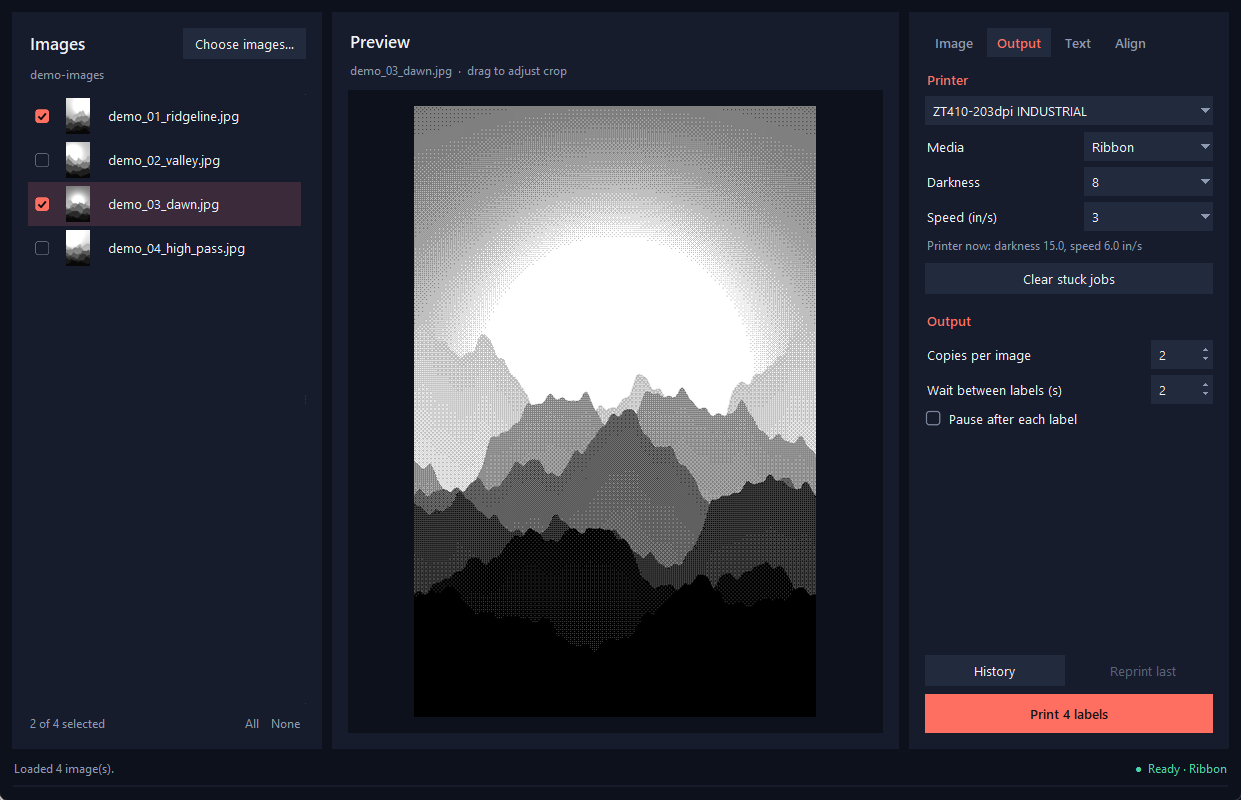
I added live printer status, read directly from the USB device instead of through the Windows print queue. It shows Ready (with ribbon or direct thermal), Printhead open, Out of labels, Out of ribbon or Paused, along with the printer's current darkness and speed.
I also found that darkness, speed and ribbon settings stay on the printer after a job, so one run could leave the next in the wrong mode. Each of those settings in the app defaults to "Printer setting", and when I switch back to it, the app tells the printer to reload its saved settings before printing.
Print Runs
Identical copies go to the printer as a single job that it repeats on its own. Labels that change from one to the next, like numbered ones, go one at a time. A run can pause after each label so I can tear it off, or wait a set number of seconds between labels, with the wait timed from when the label actually finishes printing. Every run is saved to a history I can reprint from, or copy the settings out of for new images.
Features
- Live preview with drag-to-crop (double-click resets it)
- Five dithering modes: Bayer 8×8, Bayer 4×4, Floyd-Steinberg, Atkinson and threshold
- Contrast, brightness and sharpen sliders, plus saved presets
- Ink ribbon and direct thermal printing, with darkness and speed control
- Text on labels with automatic numbering, run total, file name and date, sized to fit and kept crisp at 1 bit
- Batch printing with thumbnails, checkboxes and drag and drop
- Copies per image, pause-to-tear-off and a timed wait between labels
- Live printer status, such as Ready, Out of labels and Out of ribbon
- Print history with one-click reprints
- A calibration test pattern for lining the image up with the label
- A one-button fix for stuck Windows print jobs, which clears the queue and restarts the print spooler
- Settings, presets and window size remembered between launches