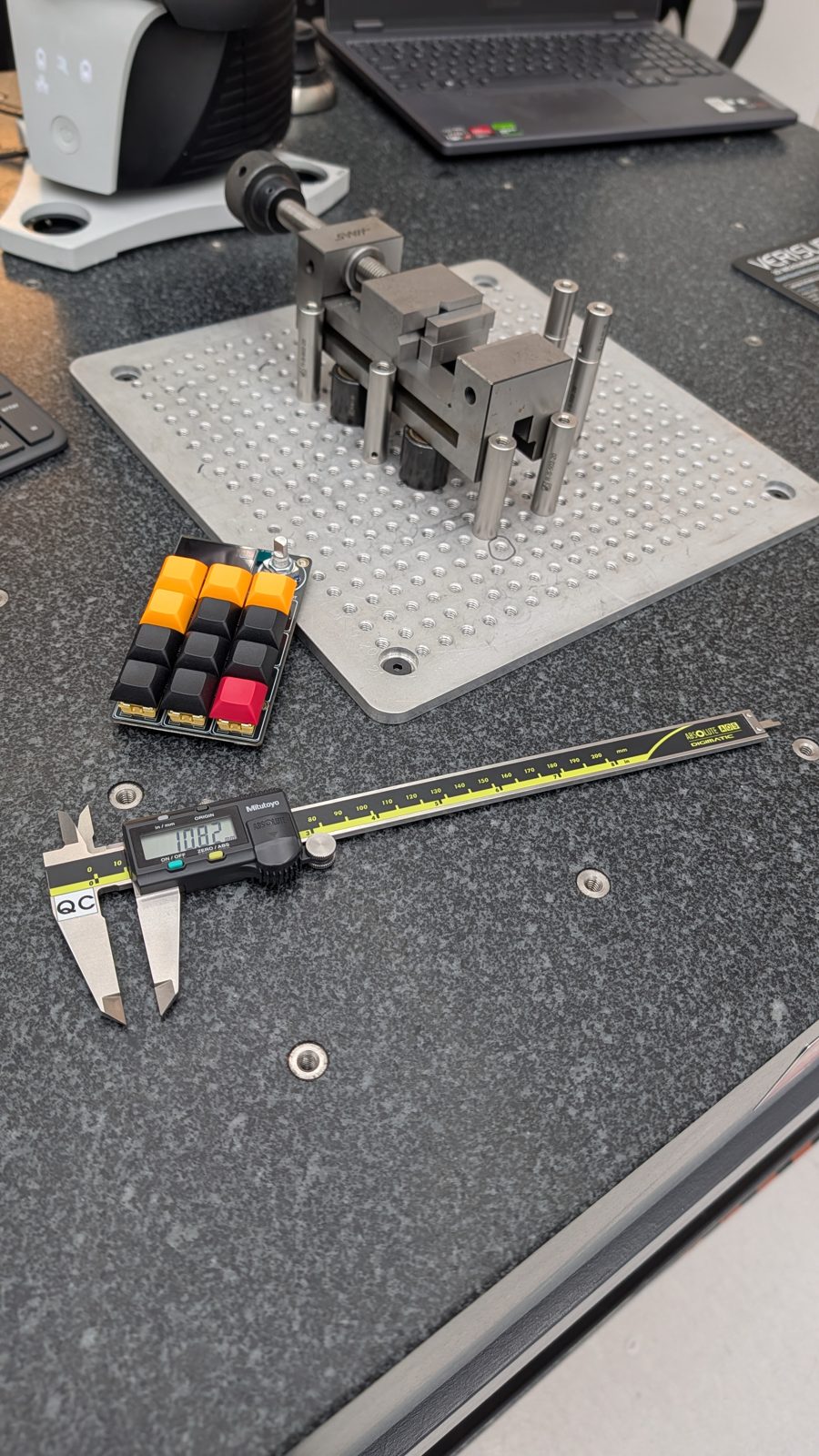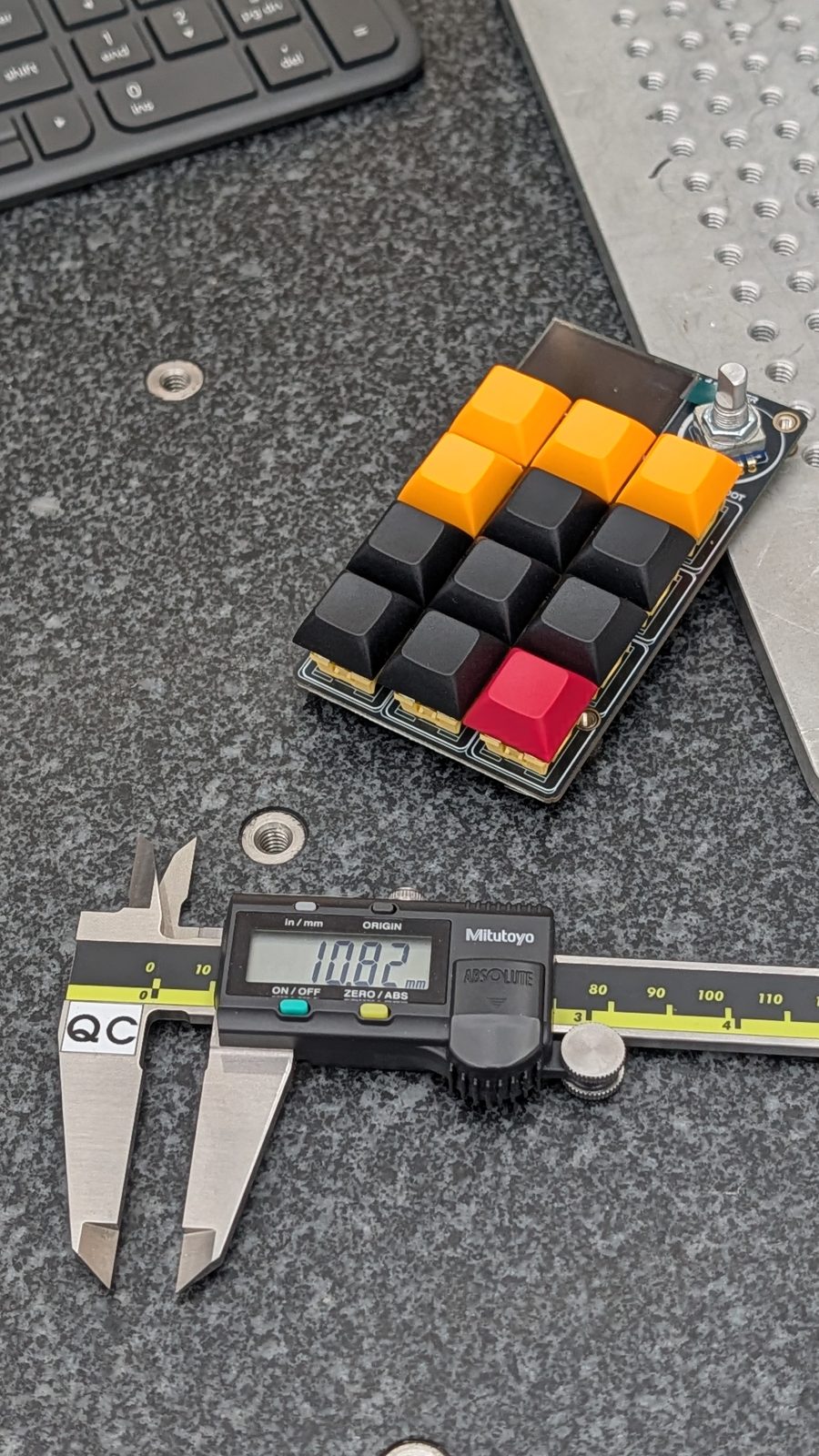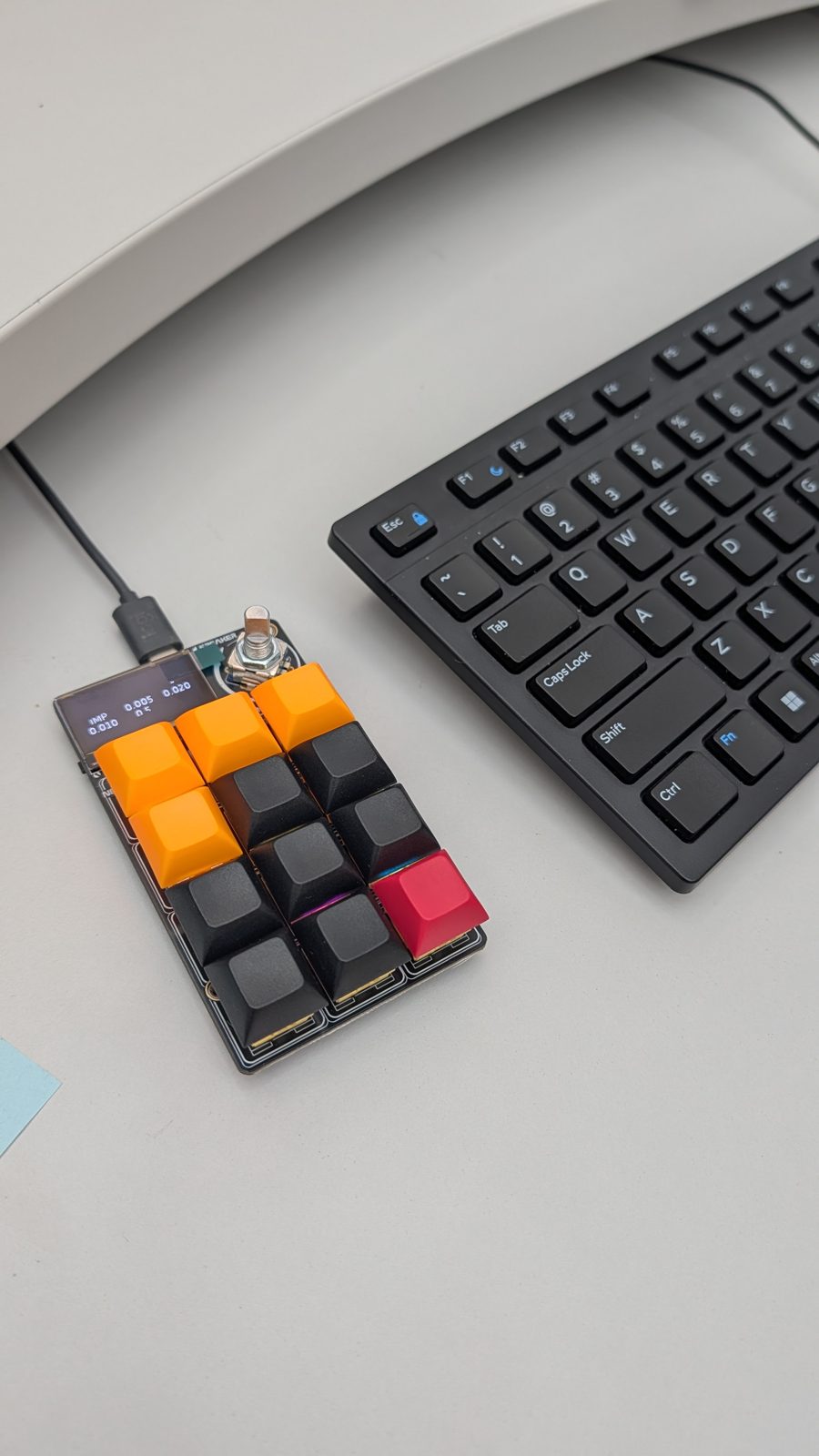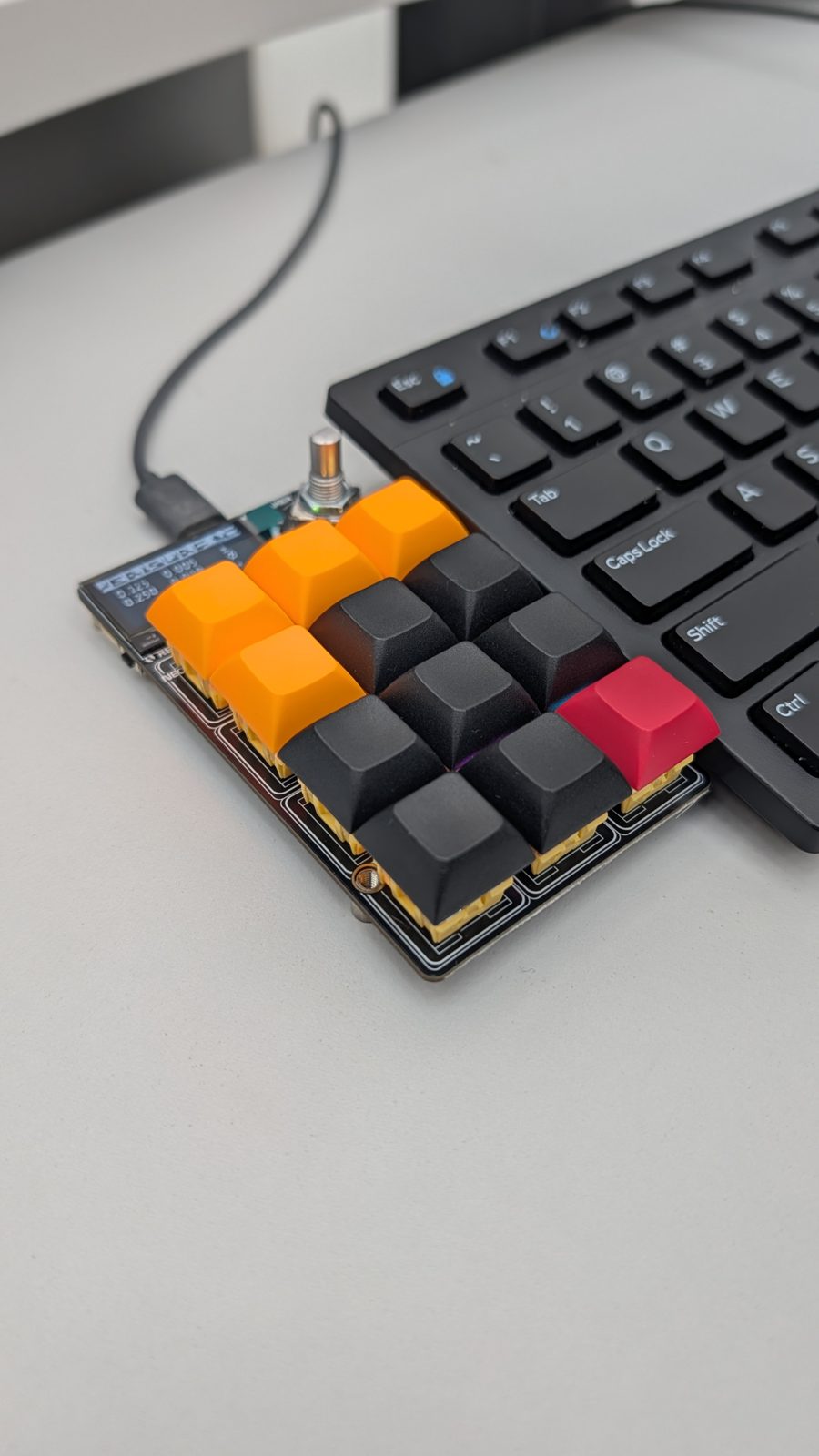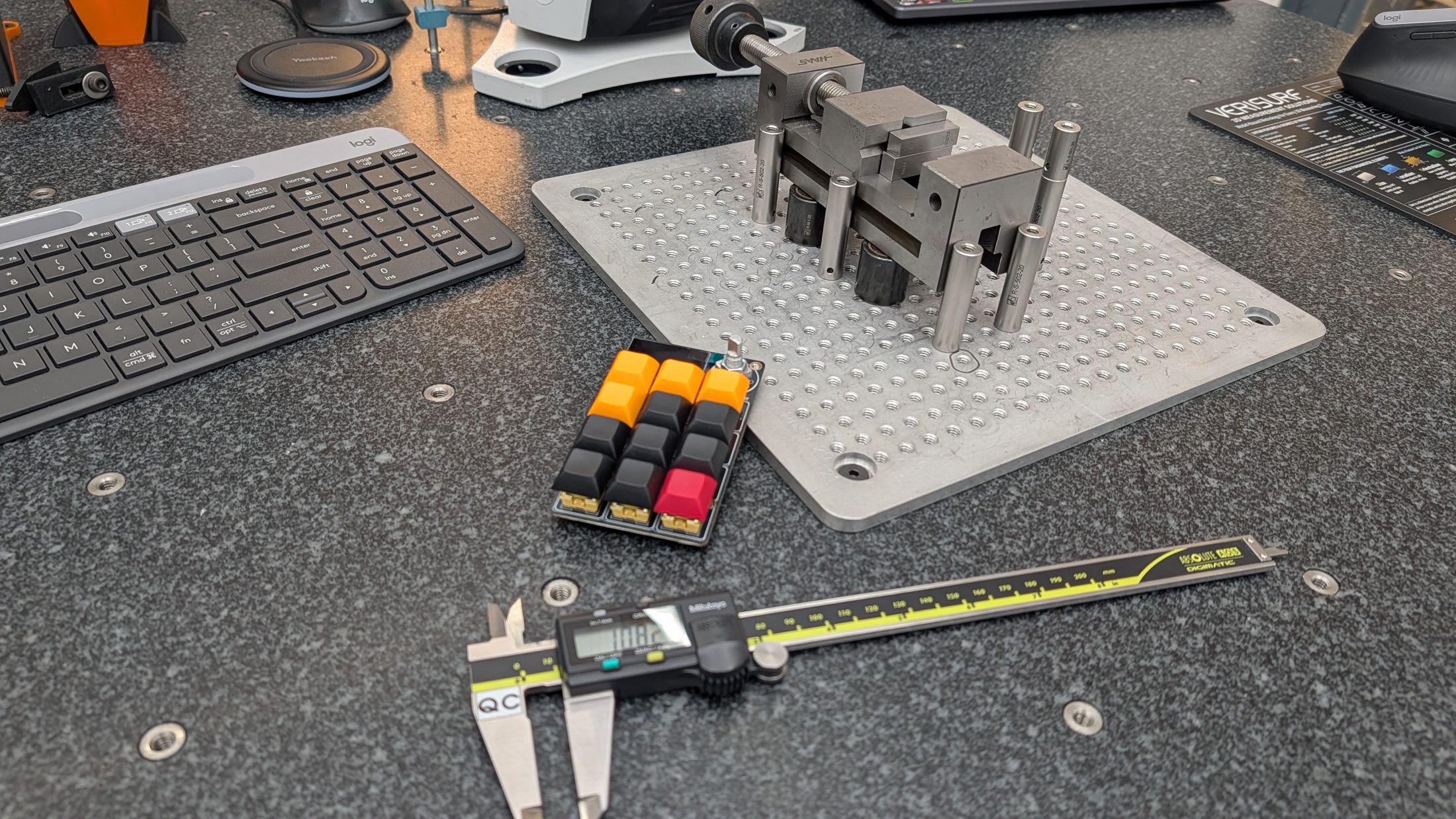
I write part inspection programs in Verisurf, and most of that work is typing the same handful of things over and over. So I turned an Adafruit MacroPad (12 keys, a rotary knob and a small OLED screen, running CircuitPython) into a dedicated input device for it. It types common tolerances, GD&T symbols and feature names, keeps a running balloon number, and handles the spacing and text-replacing rules of naming dimensions.
It started as a simple hotkey file built on Adafruit's MACROPAD Hotkeys project. It grew into a layered layout where six keys change between Imperial, Metric and Words, while the symbol keys and the bubble counter never move. The balloon counter I used to run as an AutoHotkey script on the PC now lives entirely on the pad.
Try It
The Problem
Programming an inspection means entering the same small set of values over and over: tolerances like 0.005 or 0.125, symbols like ±, Ø and °, feature names like plane or cylinder, and a balloon number for every feature on the drawing.
Symbols need Windows Alt codes (Alt+0177 for ±), which are slow and easy to get wrong.
Tolerance boxes need their old value cleared first, so every entry was click, select all, type.
Dimension names follow a pattern like 0.25 ±0.020 or 0.125 PLANE, and getting the spaces right meant reaching back to the keyboard for the space bar.
One tolerance box always needs a negative value, and typing over it erased the minus sign.
Balloon numbers lived in a separate AutoHotkey script with its own on-screen counter.
The Layout
The keycap colors match what the keys do. Orange caps never change: ±, Ø, ° and the Layer key. The six black caps in the middle change with the layer. The black cap at the bottom middle is the Replace / Insert mode key, and the red cap in the corner is the bubble counter. Pressing the knob pastes, and a long press copies.
| Layer | Keys | How to get there |
|---|---|---|
| Imperial | 0.005 · 0.020 · 0.010 · 0.5 | hold Layer + turn the knob |
| Metric | 0.125 · 0.250 · 0.4 · 0.5 · 0.2 | hold Layer + turn the knob |
| Words | plane · line · circle · cylinder · cone · bisect | tap Layer for one word, long press to lock |
How It Works
Value keys. A tap types the value. A long press types it negative, so 0.005 becomes -0.005 without touching the keyboard.
Replace / Insert. In Replace mode a value key selects all first, so it replaces whatever is in the box. Insert mode types at the cursor instead, for building dimension names. With pop-back on, the pad returns to the default mode after one value. Holding the mode key and turning the knob changes the default, and holding it and pressing the knob turns pop-back on or off.
Smart spacing. Insert mode adds a space before values, words and symbols. A value right after Ø or ± sticks to it (Ø0.250), and a word right after a pad-typed value gets a space even in Replace mode (0.125 PLANE).
Bubble counter. A tap selects the box, types the next balloon number, presses Enter and counts up. The key's label and the title bar show the next number. Holding it and turning the knob sets the number, and holding it and pressing the knob resets it.
Words. Feature names are typed lowercase on purpose, because I work with Caps Lock on.
Long press ±. Any key can take a second action on a long press. On ± it sends F13, which opens an AutoHotkey tolerance box on the PC.
The AutoHotkey Side
F13 pops up a small box pre-filled with the last entry. Type the plus and minus values and press Enter, and it pastes a bilateral tolerance like +0.003 / -0.000 back into the box I was typing in. Whole numbers are shorthand for thousandths (3 means 0.003), and anything typed with a decimal point is used as-is. It restores the clipboard afterward. The script also has F14 through F16 set up as presets for three common tolerances (+0.003 / -0.000, +0.000 / -0.003 and +0.005 / -0.000).
How It Evolved
The pad grew one change at a time, each one driven by friction I hit while actually using it.
1. Basic hotkeys. A Verisurf page with tolerance keys and ±, Ø, ° typed through Alt codes.
2. Counter moved onto the pad. The AutoHotkey script (Ctrl+A, type the number, Enter, add one) was rebuilt in CircuitPython, with Back, Forward and Reset keys on a separate Counter page.
3. Bubble counter on the main page. There were no spare keys for setup, so the bubble key borrows the knob: hold and turn to set the number, hold and press to reset.
4. Select-all before typing, so a new value replaces the old one.
5. Negative values. I first tried holding the knob as a modifier, but it felt wrong. A separate modifier key came next, and finally a long press on the value key itself.
6. Replace / Insert toggle. Select-all broke typing tolerances into names, so a mode key switches between replacing the box and inserting at the cursor, with pop-back.
7. Words page for feature names.
8. F13 on long-press ±, which gave every key the option of a second action.
9. Layers. The pad was getting crowded, so I rethought the layout around the physical keycap colors: fixed keys on orange caps, layered keys on black caps.
10. Smart spacing for building dimension names without the space bar.
11. Copy and paste on the knob press.
photos & progress